Globus Connect Server (GCS) - MCW RCC Collections#
MCW Research Computing Center provides Globus Connect Server v5 (GCSv5) mapped collections for fast, secure data transfer to and from RCC storage systems.
These collections map directly to your RCC directories:
- Home directories (
/home/$USER) - Group directories (
/group/PI/work) - Scratch directories (
/scratch/g/PI)
This guide walks you through logging in, finding the MCW RCC collections, and authorizing access the first time you use them.
1. Log in to Globus#
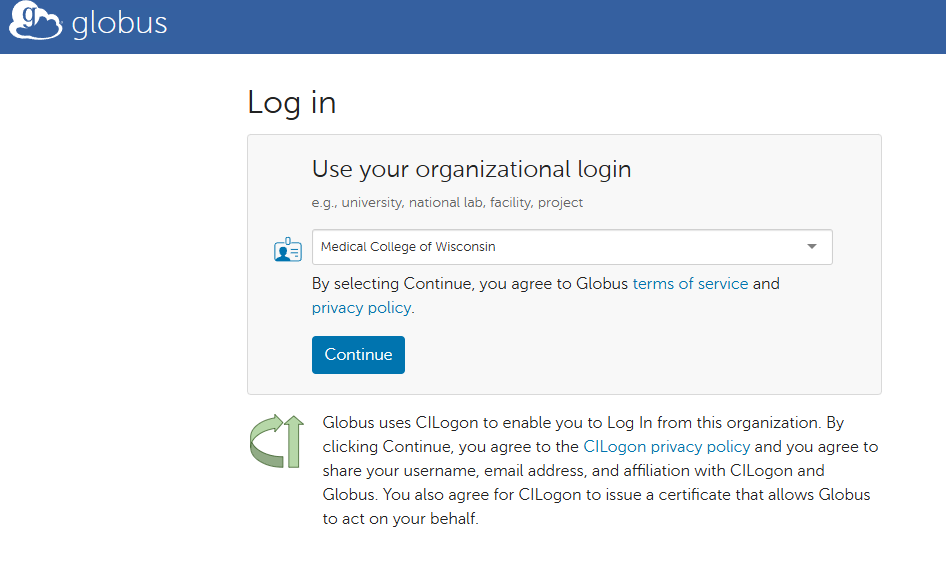
- Go to: https://app.globus.org
- Select Medical College of Wisconsin from the organizational login menu.
- Click Continue.
2. Authenticate with MCW (CILogon)#
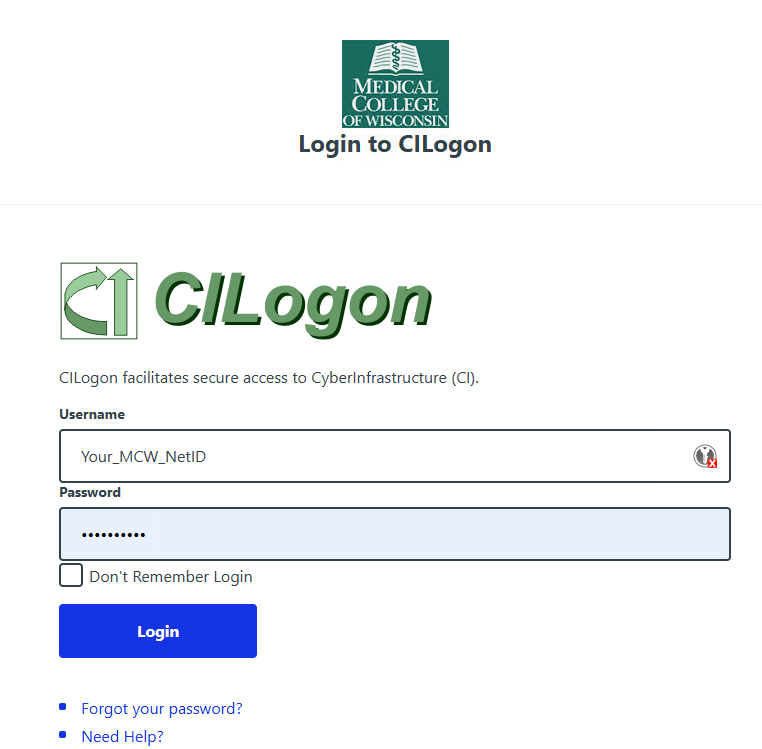
You will be redirected to the MCW CILogon page.
Log in using your MCW NetID and password.
Once authenticated, Globus will bring you to the File Manager.
3. Search for MCW RCC Storage Collections#
Inside File Manager:
- Click the Collection search bar.
- Type:
MCW RCC
You will see the three mapped RCC collections:
- MCW RCC group directories
- MCW RCC home directories
- MCW RCC scratch directories
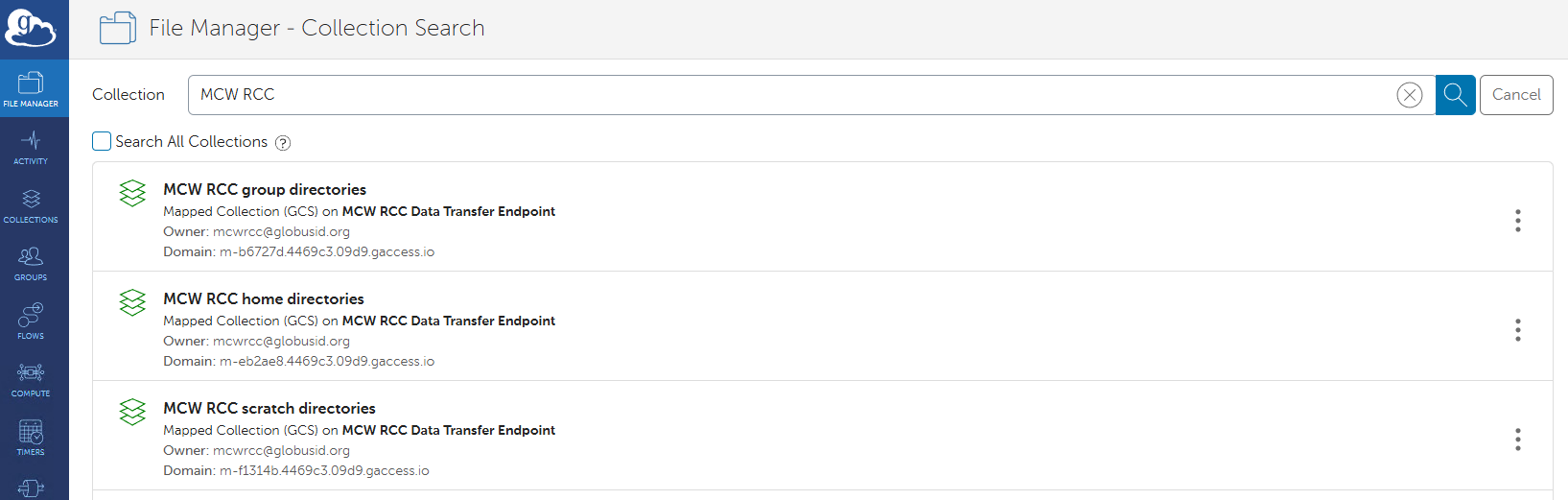
These match your RCC storage locations and enforce Linux permissions exactly as on the HPC cluster.
4. Opening a Collection (Consent Required)#
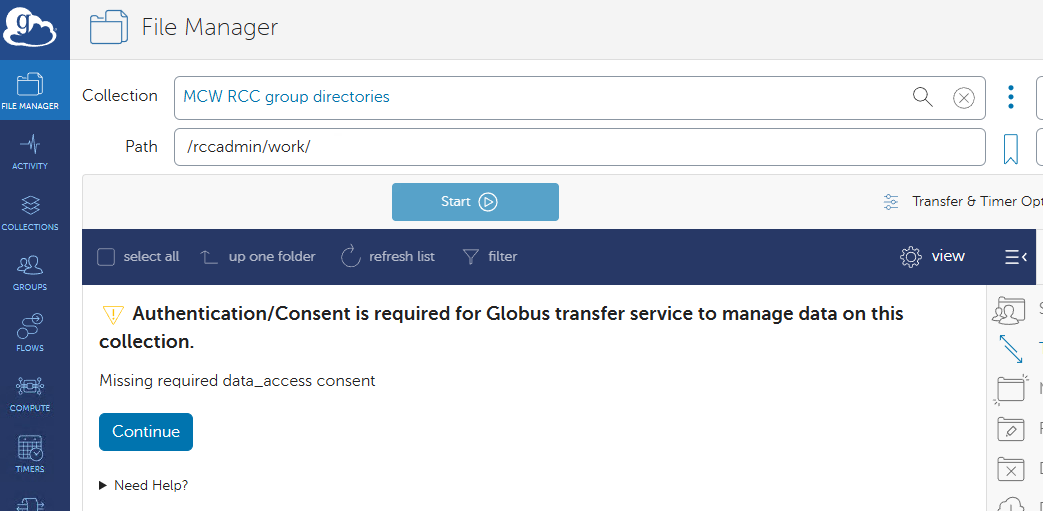
The first time you attempt to open one of the RCC collections, Globus will require data access consent.
You may see a message similar to:
Authentication/Consent is required for Globus transfer service to manage data on this collection.
Click Continue.
5. Grant Access (Allow)#
Globus will then ask for permission to:
✔ Manage data using Globus Transfer
✔ Access the MCW RCC collection on your behalf
Click on your MCW email address and then Allow.
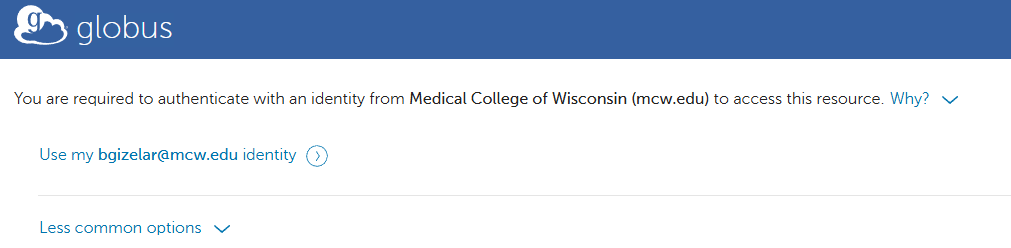
After this, the collection will open normally.
6. Transferring Data#
To begin transferring:
- Open Dual-Pane Mode in the Globus File Manager.
- Select a Source collection and a Destination collection.
- Highlight files or folders.
- Click Start.
Globus continues working even if you close the window or lose your connection.
7. Need Help?#
If you cannot access a directory, or you believe permissions are missing:
For additional transfer methods also see: